
In this article
Imagine this.
You open your office group chat after lunch. There are 147 unread messages.
Someone shared a release plan. Someone found a crash. Three people are arguing about the deployment time.
You don’t want to read all 147 messages. You just want to know one thing: “What did I miss?”
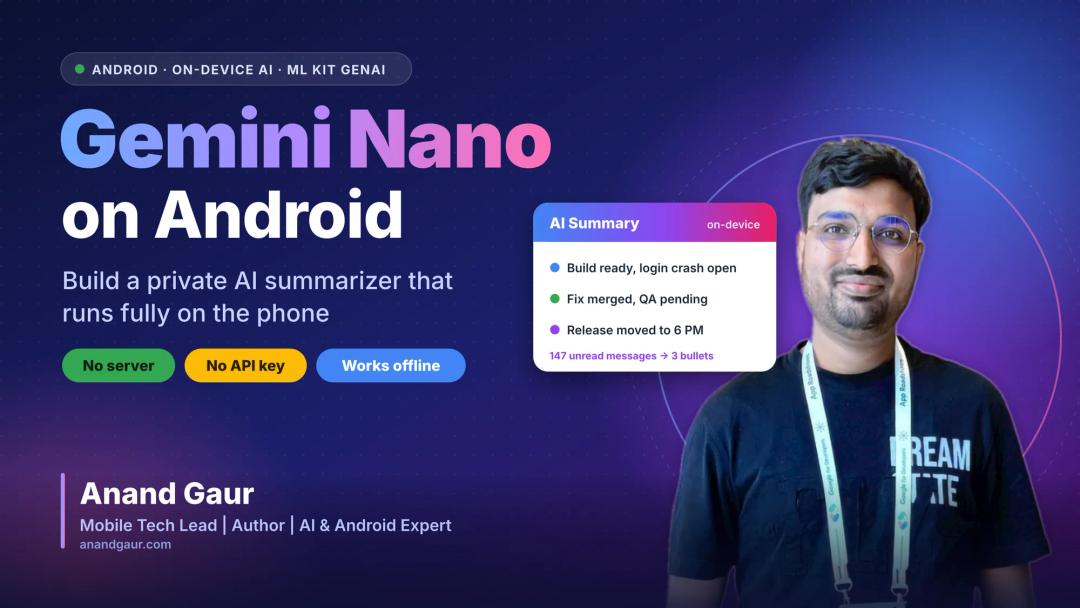
Now imagine your app could answer that in 2 seconds, in 3 short bullet points, without sending a single message to any server. It even works in the metro with no network.
That is exactly what we will build today, using Gemini Nano and the ML Kit GenAI Summarization API.
This blog goes from basic to deep. If you are new to AI on Android, start from the top and read in order. If you already know what Gemini Nano is, jump straight to Part 4: Let’s Build It.
What You Will Learn
What Gemini Nano is, in very simple words
How on-device AI is different from cloud AI (and where it is weaker)
How ML Kit, AICore and Gemini Nano work together
How to build a summarizer step by step with Kotlin and Jetpack Compose
How to handle model download, streaming output and errors
How to summarize group chats properly
What to do when the text is too long
How to make it production ready
Grab a coffee. Let’s go.
Part 1: The Basics
What is Gemini Nano?
You probably know Gemini, Google’s family of AI models. The family comes in different sizes, and the size decides where the model can run:
Gemini Pro is very big. It runs on Google’s servers.
Gemini Flash is lighter and faster, but still runs in the cloud.
Gemini Nano is small enough to run directly on your phone.
Think of it like this:
Cloud AI is like calling an expert in another city. Very smart, but every question needs a phone call, needs signal, and they hear everything you say. Gemini Nano is like a smart friend sitting next to you. Not as knowledgeable as the expert, but always there, instant, and they keep your secrets.
That is the whole idea of on-device AI. You give up a little bit of power, and in return you get privacy, speed and zero cost per request.
Cloud AI vs On-Device AI

With cloud AI, your app sends the user’s text over the internet to a server, and the answer comes back.
With Gemini Nano, the text never leaves the phone. The model runs right there on the device.
Why should you care?
Privacy. Private chats, notes, emails and health text stay on the phone.
Cost. No per-request bill. One summary or one million summaries cost you the same: nothing extra.
Offline. Works on a flight, in the metro, or with bad network. (You only need internet once, to download the model.)
Speed. No network round trip, so the first words appear quickly.
But let’s be honest. Gemini Nano has limits too:
It only runs on supported phones. Many Android phones today can’t run it.
It is smaller, so it is great at focused tasks like summarize, rewrite and proofread. It is not meant for long reasoning or writing an essay.
The Summarization API supports only English, Japanese and Korean right now.
So the right way to think is not “on-device replaces cloud”. It is:
On-device for everyday, private, frequent tasks. Cloud for heavy tasks.
We will design our app with exactly this idea.
Part 2: How the Pieces Fit Together
The most common beginner question is:
“Do I need to put the Gemini Nano model inside my APK?”
No. You never ship the model. The phone manages it for you.
Here is how it works:

Let’s understand each layer in simple words.
1. Your App
Just calls a simple Kotlin API.
No prompt writing. No AI settings to tune.
2. ML Kit GenAI Library
This is the library you add in Gradle. Google has already done the hard work here:
A ready-made prompt for summarization, already tested.
Tuned settings. You may hear words like temperature and topK. In simple words, they control how creative or how predictable the AI is. For a summary we want predictable and factual, and ML Kit has already set that.
A LoRA adapter. Think of it as a small extra layer of training on top of the model that makes it better at one specific job, like summarizing.
3. AICore
A system app that comes on supported phones.
It downloads Gemini Nano, keeps it updated and runs it safely.
Most important: it keeps one copy of the model for the whole phone. If 10 apps use Gemini Nano, there is still only one model on the device. That is why your APK size does not grow.
4. Gemini Nano
The actual model, running on the phone’s AI chip (NPU) or GPU.
4 words you should know before coding
These words will come again and again in this blog. Read them once and everything after this becomes easy.
Token: AI models don’t read words, they read tokens. A token is a small piece of text. In English, 1 token is about 4 characters, or roughly three quarters of a word.
Inference: Simply means “run the model and get the answer”. So
runInference()= "generate the summary now".Streaming: Instead of waiting for the full answer, you get the text piece by piece, as it is being written.
Feature status: Can this phone run this feature right now? Ready, needs download, or not supported.
What can the Summarization API do?
Summarize two types of text:
ARTICLE: news, blogs, docs, notes
CONVERSATION: chats between people
Give the result as 1, 2 or 3 bullet points
Languages: English, Japanese, Korean
ML Kit GenAI also has sister APIs: Proofreading, Rewriting, Image Description and a general Prompt API. They all work the same way, so once you learn this one, the others feel easy.
Part 3: Before You Start
Check these first. This is where most people get stuck.
Min SDK 26 (Android 8.0) or higher
A real supported phone. Recent Pixel phones and some flagship phones from other brands. Google keeps an official supported-devices list, and it keeps growing, so check it.
Locked bootloader. Phones with an unlocked bootloader are not supported.
Internet once, for the first model download
The API is in beta, so names and behaviour may change in future versions
Note: The emulator won’t run Gemini Nano. You need a real phone.
Part 4: Let’s Build It, the “CatchUp” App
We will build a small app called CatchUp.
The user pastes an article or a chat
Taps Summarize
Sees a 3-bullet summary appear word by word
Small app, but it covers every important concept.
The flow we will follow
Keep this picture in mind. Every box here is one block of code we are going to write.

In simple way:
Create the summarizer
Ask the phone: “Can you do this?”
If needed, download the model and show progress
Run the summary and show it word by word
Close the summarizer when the screen is gone
Step 1: Add dependencies
In your app-level build.gradle.kts:
android {
    defaultConfig {
        minSdk = 26
    }
}

dependencies {
    // ML Kit GenAI Summarization (check for the latest version)
    implementation("com.google.mlkit:genai-summarization:1.0.0-beta1")
    // Lets us call .await() on ListenableFuture inside coroutines
    implementation("org.jetbrains.kotlinx:kotlinx-coroutines-guava:1.8.1")
    // ViewModel + lifecycle helpers for Compose
    implementation("androidx.lifecycle:lifecycle-viewmodel-compose:2.8.7")
    implementation("androidx.lifecycle:lifecycle-runtime-compose:2.8.7")
}
Why do we need kotlinx-coroutines-guava?
ML Kit returns results as
ListenableFuture, which is a Java-style "the answer will come later" object.Handling it with callbacks gets messy very fast.
This small library adds
.await(), so we can write clean, top-to-bottomsuspendcode.
Step 2: Plan the screen states
Before writing logic, let’s list every state our screen can be in. This one small habit saves you from bugs like a loader that never stops.
sealed interface SummaryUiState {
    data object Idle : SummaryUiState
    data object Unsupported : SummaryUiState
    data class Downloading(val downloadedBytes: Long, val totalBytes: Long) : SummaryUiState
    data class Summarizing(val partialText: String) : SummaryUiState
    data class Success(val summary: String) : SummaryUiState
    data class Error(val message: String) : SummaryUiState
}
What each state means:
Idle: nothing has happened yet
Unsupported: this phone can’t run Gemini Nano
Downloading: model is downloading, with numbers for a progress bar
Summarizing: summary is being written, we show the partial text
Success: final summary is ready
Error: something went wrong
Think of it like a traffic signal. The screen is always in exactly one state. And because it is a sealed interface, Kotlin will warn you if you forget to handle any state in the UI.
Step 3: Create the Summarizer
import android.content.Context
import com.google.mlkit.genai.summarization.Summarization
import com.google.mlkit.genai.summarization.Summarizer
import com.google.mlkit.genai.summarization.SummarizerOptions

fun createSummarizer(
    context: Context,
    inputType: Int = SummarizerOptions.InputType.ARTICLE
): Summarizer {
    val options = SummarizerOptions.builder(context)
        .setInputType(inputType)                                   // ARTICLE or CONVERSATION
        .setOutputType(SummarizerOptions.OutputType.THREE_BULLETS) // 1, 2 or 3 bullets
        .setLanguage(SummarizerOptions.Language.ENGLISH)
        .setLongInputAutoTruncationEnabled(true)                   // cut very long text safely
        .build()
    return Summarization.getClient(options)
}
Let’s understand each option:
Input type: Tells the model what kind of text it is reading. An article has a clear structure. A chat is many short messages from different people. The model reads them differently, so always pick the right one.
Output type: How many bullets you want. 1 bullet is good for a notification. 3 bullets is better when the user really wants to understand.
Language: The language of the input text.
Auto truncation: If the text is too long, ML Kit cuts it instead of failing. Easy and safe, but the end of the text may be ignored. (We will see better options in Part 6.)
One more thing: getClient() is cheap. It does not load the model yet. The model loads only when you ask for a summary.
Step 4: The ViewModel (the brain of the app)
This is the most important part. First see the full code, then we will break it into small pieces.
import android.app.Application
import androidx.lifecycle.AndroidViewModel
import androidx.lifecycle.viewModelScope
import com.google.mlkit.genai.common.DownloadCallback
import com.google.mlkit.genai.common.FeatureStatus
import com.google.mlkit.genai.common.GenAiException
import com.google.mlkit.genai.summarization.SummarizationRequest
import kotlinx.coroutines.flow.MutableStateFlow
import kotlinx.coroutines.flow.StateFlow
import kotlinx.coroutines.flow.asStateFlow
import kotlinx.coroutines.guava.await
import kotlinx.coroutines.launch

class SummaryViewModel(app: Application) : AndroidViewModel(app) {
    private val summarizer = createSummarizer(app)
    private val _uiState = MutableStateFlow<SummaryUiState>(SummaryUiState.Idle)
    val uiState: StateFlow<SummaryUiState> = _uiState.asStateFlow()
    fun summarize(text: String) {
        viewModelScope.launch {
            try {
                // 1. Can this phone do it?
                when (summarizer.checkFeatureStatus().await()) {
                    FeatureStatus.UNAVAILABLE -> {
                        _uiState.value = SummaryUiState.Unsupported
                    }
                    FeatureStatus.DOWNLOADABLE,
                    FeatureStatus.DOWNLOADING -> {
                        // 2. Download first, then summarize
                        downloadModel { runSummary(text) }
                    }
                    FeatureStatus.AVAILABLE -> {
                        // 3. Ready, summarize now
                        runSummary(text)
                    }
                }
            } catch (e: Exception) {
                _uiState.value = SummaryUiState.Error(e.message ?: "Something went wrong")
            }
        }
    }
    private fun downloadModel(onReady: () -> Unit) {
        var totalBytes = 0L
        summarizer.downloadFeature(object : DownloadCallback {
            override fun onDownloadStarted(bytesToDownload: Long) {
                totalBytes = bytesToDownload
                _uiState.value = SummaryUiState.Downloading(0, totalBytes)
            }
            override fun onDownloadProgress(totalBytesDownloaded: Long) {
                _uiState.value = SummaryUiState.Downloading(totalBytesDownloaded, totalBytes)
            }
            override fun onDownloadCompleted() {
                onReady()
            }
            override fun onDownloadFailed(e: GenAiException) {
                _uiState.value = SummaryUiState.Error("Download failed: ${e.message}")
            }
        })
    }
    private fun runSummary(text: String) {
        viewModelScope.launch {
            try {
                val request = SummarizationRequest.builder(text).build()
                val builder = StringBuilder()
                _uiState.value = SummaryUiState.Summarizing("")
                // 4. Streaming: text comes in small pieces
                val result = summarizer.runInference(request) { newText ->
                    builder.append(newText)
                    _uiState.value = SummaryUiState.Summarizing(builder.toString())
                }.await()
                _uiState.value = SummaryUiState.Success(result.summary)
            } catch (e: Exception) {
                _uiState.value = SummaryUiState.Error(e.message ?: "Summarization failed")
            }
        }
    }
    override fun onCleared() {
        // 5. Always free the model resources
        summarizer.close()
        super.onCleared()
    }
}
Looks long? Don’t worry. It is just 4 simple ideas. Let’s go one by one.
Idea 1: checkFeatureStatus() asks “Can you do this?”
This is always the first call. It returns one of 4 answers:
UNAVAILABLE: This phone can’t run it. Don’t show an error. Just hide the button or use a cloud fallback.
DOWNLOADABLE: Phone supports it, but the model is not downloaded yet. Very common on first use.
DOWNLOADING: Download is already going on. Maybe another app started it, because AICore shares the model between apps.
AVAILABLE: All ready. Summarize now.
Small detail: the answer depends on the options you passed. That is why we ask the summarizer we created, not some global check.
Idea 2: downloadFeature() gets the model, with progress
We listen to 4 callbacks:
onDownloadStarted: gives total size, so we can show a percentageonDownloadProgress: called again and again as data arrivesonDownloadCompleted: model is ready, so we start the summaryonDownloadFailed: something went wrong, show or log the error
Can you skip this step? Technically yes. The first runInference() will download the model by itself. But then the user taps a button and nothing visible happens for a while. That feels broken. People are patient when they see progress. They are not patient with a frozen screen.
Threading note: These callbacks may not run on the main thread. That’s fine here, because updating a MutableStateFlow is thread-safe and Compose reads it on the main thread. If you update Views directly, switch to the main thread first.
Idea 3: runInference() with streaming
We wrap the text in a
SummarizationRequest.We pass a lambda to
runInference(). This lambda is called every time a new piece of text is ready.We add each piece to a
StringBuilderand update the UI.When it finishes,
.await()gives the finalresult.summary.
Why is streaming such a big deal? Look at this:

The work takes the same time in both cases. But with streaming, the user sees words almost immediately, so the app feels much faster. Same work, very different experience.
Don’t need streaming? For example, saving summaries to a database? Use the simple version:
val summary = summarizer.runInference(request).await().summaryIdea 4: close() cleans up
The summarizer holds memory while it is alive. When the ViewModel is cleared, we close it. Forgetting this won’t crash your app, but it wastes memory, and memory matters a lot when a phone is running an AI model.
Step 5: The Compose UI
@Composable
fun SummaryScreen(viewModel: SummaryViewModel = viewModel()) {
    val state by viewModel.uiState.collectAsStateWithLifecycle()
    var input by remember { mutableStateOf("") }

val isBusy = state is SummaryUiState.Summarizing || state is SummaryUiState.Downloading
    Column(
        modifier = Modifier
            .fillMaxSize()
            .padding(16.dp)
            .verticalScroll(rememberScrollState())
    ) {
        Text("CatchUp", style = MaterialTheme.typography.headlineMedium)
        Spacer(Modifier.height(12.dp))
        OutlinedTextField(
            value = input,
            onValueChange = { input = it },
            label = { Text("Paste an article or a chat") },
            modifier = Modifier
                .fillMaxWidth()
                .height(220.dp)
        )
        Spacer(Modifier.height(12.dp))
        Button(
            onClick = { viewModel.summarize(input) },
            enabled = input.length > 400 && !isBusy
        ) {
            Text("Summarize")
        }
        Spacer(Modifier.height(16.dp))
        when (val s = state) {
            SummaryUiState.Idle ->
                Text("Paste at least 400 characters to get started.")
            SummaryUiState.Unsupported ->
                Text("On-device summaries aren't available on this phone.")
            is SummaryUiState.Downloading -> {
                val progress = if (s.totalBytes > 0) {
                    s.downloadedBytes.toFloat() / s.totalBytes
                } else 0f
                Text("Setting up on-device AI. This only happens once.")
                Spacer(Modifier.height(8.dp))
                LinearProgressIndicator(
                    progress = { progress },
                    modifier = Modifier.fillMaxWidth()
                )
            }
            is SummaryUiState.Summarizing ->
                Text(s.partialText.ifEmpty { "Reading..." })
            is SummaryUiState.Success -> {
                Text("AI-generated summary", style = MaterialTheme.typography.labelMedium)
                Spacer(Modifier.height(4.dp))
                Text(s.summary)
            }
            is SummaryUiState.Error ->
                Text("Couldn't summarise: ${s.message}", color = MaterialTheme.colorScheme.error)
        }
    }
}
A few small details here are on purpose:
Button works only after 400 characters. That is a real API rule for articles (more in Part 6). So the user never sees that error.
Button is disabled while busy. Otherwise an impatient user taps 5 times and starts 5 summaries.
“This only happens once”. A download bar with no explanation looks suspicious. One friendly line fixes that.
“AI-generated summary” label. Summaries can miss things. Users should know the text came from AI.
Step 6: Run it
Paste a long news article. Tap Summarize. Watch the 3 bullets appear word by word.
Now turn on airplane mode and try again. It still works. The first time you see this, it honestly feels a little magical.
Part 5: Summarizing Group Chats
Remember our 147 unread messages? Let’s solve that now.
For chats, two things change:
Use
InputType.CONVERSATIONSend each message on its own line as
Name: message
val chatSummarizer = createSummarizer(
    context,
    inputType = SummarizerOptions.InputType.CONVERSATION
)

val chat = """
    Rahul: Release build is ready, uploading to Play Console now
    Priya: Wait, the login crash on Android 12 is still open
    Rahul: I thought Aman fixed it yesterday?
    Aman: Fix is merged, but QA hasn't verified it yet
    Priya: Then let's push the release to 6 PM after QA sign-off
    Rahul: Okay, moving release to 6 PM
""".trimIndent()
The summary will look something like this:
The release build is ready, but a login crash on Android 12 was still being checked.
Aman merged a fix, and QA still needs to verify it.
The team moved the release to 6 PM after QA sign-off.
Why does the Name: message format matter? In a chat, who said something is part of the meaning. “Let’s ship today” from the release manager is very different from the same line by an intern joking around.
Clean the chat before you send it
Real chat data is messy. Here is how to clean it:

Names, not IDs. “user_481: sounds good” tells the model nothing. Map IDs to display names.
Skip images and stickers. They have no text. Leave them out, or write “Rahul: [shared a photo]” if it matters.
Drop timestamps. They use tokens and rarely help.
Send only unread messages. No need to summarize 2,000 old messages.
If your messages are in Room, it is one line:
val chatText = messages.joinToString("\n") { "${it.senderName}: ${it.text}" }Part 6: Going Deeper, the Limits You Must Know
These limits are not bugs. A phone simply has much less memory and power than a data centre. Know them, and you can design around them.
Limit 1: Input length
Input should be under about 4,000 tokens
That is roughly 3,000 English words, or around 16,000 characters
Most articles fit easily. Long reports, book chapters or a full day of chat may not.
What if the text is too long? You have 4 options:

Option A, auto-truncate: Easiest. Never fails. But the end of the text is ignored. Fine for news (main info is at the top). Bad for chats (the final decision is usually at the bottom).
Option B, trim it yourself: Same idea, but you choose what to keep. For chats, keep the latest messages.
Option C, chunk and combine: Best quality when every part matters. We will build this below.
Option D, cloud fallback: For very big inputs, like a 50-page PDF, use a cloud model.
Option C in detail: chunk and combine

The idea is simple:
Split the long text into smaller parts
Summarize each part
Join those summaries and summarize them once more
This pattern is called map-reduce. “Map” = do the same job on each piece. “Reduce” = combine the results.
First, split the text smartly. Cutting in the middle of a sentence confuses the model, so we split on paragraphs:
// ~4 characters per token in English, so 10,000 characters is ~2,500 tokens.
// This leaves a safe margin under the limit.
private const val MAX_CHARS_PER_CHUNK = 10_000
fun splitIntoChunks(text: String): List<String> {
    val chunks = mutableListOf<String>()
    val current = StringBuilder()
    for (paragraph in text.split("\n\n")) {
        if (current.length + paragraph.length > MAX_CHARS_PER_CHUNK && current.isNotEmpty()) {
            chunks += current.toString()
            current.clear()
        }
        current.append(paragraph).append("\n\n")
    }
    if (current.isNotBlank()) chunks += current.toString()
    return chunks
}
Then summarize each part and combine:
suspend fun summarizeLongText(summarizer: Summarizer, text: String): String {
    val chunks = splitIntoChunks(text)
// Small enough? Summarize directly.
    if (chunks.size == 1) {
        return summarizer.runInference(SummarizationRequest.builder(text).build())
            .await().summary
    }
    // Map: summarize each part
    val partSummaries = chunks.map { chunk ->
        summarizer.runInference(SummarizationRequest.builder(chunk).build())
            .await().summary
    }
    val combined = partSummaries.joinToString("\n")
    // Article input needs more than 400 characters.
    // If the combined text is shorter, it is already short enough to show.
    if (combined.length <= 400) return combined
    // Reduce: summarize the summaries
    return summarizer.runInference(SummarizationRequest.builder(combined).build())
        .await().summary
}
Things to keep in mind:
Character count is only a guess for tokens. That’s why we stay well below the limit.
It is slower. 3 parts = 4 requests. Show progress like “Summarizing part 2 of 3”.
Some small details get lost, because each step compresses the text. For most apps, that’s a fair trade.
Limit 2: Minimum length for articles
Article input must be more than 400 characters
Works best with 300+ words
Makes sense, right? A summary should be shorter than the original. If the original is two lines, there is nothing to summarize.
Limit 3: Languages
Only English, Japanese and Korean for now. If your users write in Hindi or other languages:
Detect the language first with ML Kit’s Language Identification API (also on-device)
Supported language? Use Gemini Nano.
Not supported? Hide the button, or use a cloud model.
Limit 4: Beta API
The API may change. So don’t let your whole app depend on ML Kit classes directly. Wrap them in your own interface. We’ll do this in Part 8.
Part 7: Common Errors and How to Fix Them
You will likely see at least one of these during development. They look scary, but the fix is usually simple.

601 BINDING_FAILURE. Your app couldn’t connect to AICore. Common on a brand new phone, or if AICore was removed. Fix: Update AICore from Play Store, then reinstall your app.
606 FEATURE_NOT_FOUND. AICore is still downloading its settings. On a new phone this can take minutes or even hours. Fix: Stay on Wi-Fi, wait, restart the phone. (On an unlocked-bootloader phone, it won’t go away.)
0 UNKNOWN during download. Simple network problem. Fix: Check internet and retry after a few minutes.
Golden rule: Always call
checkFeatureStatus()before showing any AI button. Then users never see these errors. They either see the feature working, or they don't see it at all.
Part 8: Making It Production Ready
The demo works. But a real app runs on hundreds of different phones. Here’s what I’d add before shipping.
1. Hide ML Kit behind your own interface

This one idea solves three problems at once: beta changes, unsupported phones, and testing.
interface TextSummarizer {
    suspend fun isAvailable(): Boolean
    suspend fun summarize(text: String): String
}
The Gemini Nano version:
class GeminiNanoSummarizer(context: Context) : TextSummarizer {
private val summarizer = createSummarizer(context)
    override suspend fun isAvailable(): Boolean =
        summarizer.checkFeatureStatus().await() != FeatureStatus.UNAVAILABLE
    override suspend fun summarize(text: String): String =
        summarizer.runInference(SummarizationRequest.builder(text).build())
            .await()
            .summary
    fun close() = summarizer.close()
}
And a small class that picks the right engine:
class SummarizerSelector(
    private val onDevice: GeminiNanoSummarizer,
    private val cloud: TextSummarizer
) {
    suspend fun pick(): TextSummarizer =
        if (onDevice.isAvailable()) onDevice else cloud
}
Why this is great:
Your screens only know
TextSummarizer. They don't care where the summary comes from.If the beta API changes, you fix one class.
On unsupported phones, the cloud version (for example with Firebase AI Logic) takes over.
In unit tests, a FakeSummarizer returns a fixed string. Gemini Nano won’t run on CI machines anyway.
2. Download at the right time
Core feature? Start the download when the screen opens, with a small progress bar. By the time the user taps, it’s ready.
Rarely used feature? Download only when the user asks. Don’t waste their data and storage.
3. Use it in the foreground
On-device AI is built for when your app is on screen.
AICore can reject requests from the background, and can limit apps that send too many requests too fast.
So no “summarize 5,000 articles overnight” jobs. And always handle errors with a retry later.
4. Reuse one summarizer
Create it once (ViewModel or a DI singleton). Don’t create a new one on every tap. And always call close() at the end.
5. Be honest with users
Label AI content clearly.
If you say “your data stays on your phone”, make sure that’s true. If the cloud fallback sends text to a server, tell users.
For legal, medical or money-related text, ask users to check the original. A summary is a shortcut, not a replacement.
When NOT to use Gemini Nano
Most of your users have older or budget phones
Your content is mostly in unsupported languages
Your inputs are usually very long documents
You need deep reasoning or long writing, not short summaries
In these cases, use a cloud model as the main option, and treat Gemini Nano as a bonus for users who have it.
Part 9: Real-World Ideas You Can Build Today
News app: a “read in 30 seconds” button on long articles
Chat app: a “what did I miss?” summary for busy groups
Notes app: an auto summary line for every long note
Email app: a one-line preview of long email threads
Support app: summarize a long ticket before the agent opens it
Shopping app: turn hundreds of reviews into the main pros and cons
What do they all have in common? The text is often private, and the feature is used often. That’s exactly where on-device AI shines.
Quick Recap

Add the
genai-summarizationdependencyBuild
SummarizerOptions(input type, bullets, language)Create the client with
Summarization.getClient(options)Call
checkFeatureStatus()and handle all 4 answersCall
downloadFeature()and show progressCall
runInference()and stream the summaryCall
close()when done
That’s it. Seven steps, and your app has a private, offline AI summarizer.
Final Thoughts
A few years ago, running an AI model on a phone sounded like science fiction. Today it’s one Gradle dependency and about a hundred lines of Kotlin.
On-device AI won’t replace cloud AI. The smartest apps will use both: Gemini Nano for quick, private, everyday tasks, and the cloud for heavy work.
My suggestion? Pick one screen in your app where users deal with too much text. Add one Summarize button, with a proper feature check, a fallback and an honest label. You’ll learn more from shipping that one button than from reading ten more blogs.
Useful links
Official docs: developers.google.com/ml-kit/genai/summarization/android
ML Kit GenAI samples: github.com/googlesamples/mlkit (android/genai folder)
If you found this helpful, give it a clap and follow for more Android + AI content. I’d love to see what you build with Gemini Nano, so tell me in the comments.
Happy coding!
Level Up Your Mobile Developer Interview !
Mastering AI for Android Developers
Your complete hands-on guide to integrating AI into Android apps — covering Generative AI, LLMs, on-device intelligence, AI APIs, real-world use cases, and practical implementation with modern Android development.
👉 Grab your copy now:
https://medium.com/@anandgaur2207/mastering-ai-for-android-developers-5cc6d62e7d21
Cracking the Mobile System Design Interview Book
Your complete practical guide to mastering Mobile System Design Interviews — covering scalable architecture, Android & iOS system design concepts, high-level design strategies, low-level design patterns, performance optimization, offline-first architecture, real-world case.
👉 Grab your copy now:
https://medium.com/@anandgaur2207/cracking-the-mobile-system-design-interview-book-8ff043db0359
Data Structures & Algorithms for Mobile App Developers Book
Master the Data Structures & Algorithms concepts every Android, iOS, Flutter, React Native, and KMP developer should know. Learn arrays, linked lists, trees, graphs, dynamic programming, searching, sorting, recursion, and problem-solving techniques with practical coding examples and interview-focused explanations.
👉 Grab your copy now:
https://medium.com/@anandgaur2207/data-structures-algorithms-for-mobile-app-developers-74db0ae17376?sharedUserId=anandgaur2207
Crack Android Interviews Like a Pro
Your complete Android interview preparation book — packed with real questions, deep explanations, and practical insights to help you stand out.
👉 Grab your copy now:
https://medium.com/@anandgaur2207/crack-android-interviews-with-confidence-the-only-handbook-youll-need-b87ec525f19c
iOS Developer Interview Handbook
From Swift fundamentals to advanced iOS concepts — a complete handbook to help you prepare smartly and confidently.
👉 Explore the book:
https://medium.com/@anandgaur2207/crack-ios-developer-interviews-with-confidence-the-complete-ios-developer-handbook-f1eabc3d7a21
Flutter Developer Interview Handbook
Ace your next Flutter interview with scenario-based questions, detailed explanations, and hands-on examples that make you stand out.
👉 Explore the book:
https://medium.com/@anandgaur2207/crack-flutter-developer-interviews-with-confidence-the-complete-flutter-developer-interview-6cb53996832c
React Native Developer Interview Handbook
Crack your next React Native interview with confidence!
This guide is packed with scenario-based questions, detailed explanations, and hands-on examples to help you stand out and succeed.
👉 Explore the book:
https://medium.com/@anandgaur2207/react-native-interview-crack-your-next-interview-with-confidence-0d7255a20fe1
Need 1:1 Career Guidance or Mentorship?
If you’re looking for personalized guidance, interview preparation help, or just want to talk about your career path in mobile development — you can book a 1:1 session with me on dreamprogramming.
I’ve helped many developers grow in their careers, switch jobs, and gain clarity with focused mentorship. Looking forward to helping you too!
Found this helpful? Don’t forgot to clap 👏 and follow me for more such useful articles about Android development and Kotlin or buy us a coffee here ☕
If you need any help related to Mobile app development. I’m always happy to help you.
Follow me on:
Written by
Anand Gaur
AI Mobile Coders
Share this post